
Losing every photo on your phone is a nightmare that happens to people every single day. You might drop your phone in a lake, or it might just stop turning on one morning. If you do not have a plan to back up your photos, those memories of your kids or your last vacation are gone forever.
The short answer is to use an automatic cloud service like Google Photos or iCloud. These apps copy your pictures to the internet as soon as you take them. This means your files stay safe even if your physical device breaks or disappears. You should also keep a second copy on a physical hard drive at home just to be extra safe.
Choose the right app for your phone
Most people use either an iPhone or an Android phone. If you have an iPhone, the easiest way is to use iCloud. It is already built into your settings. You do not have to download anything new to make it work. My sister lost her phone at a concert last year, but because she had iCloud turned on, she had all her photos back on her new phone in ten minutes.
To turn this on, go to your Settings app. Tap your name at the very top. Then tap on iCloud and select Photos. Make sure the switch for Sync this iPhone is turned green. Once you do this, your phone will upload pictures whenever you are on Wi-Fi and the phone is charging. It is a set it and forget it system that works well for most people.
If you use an Android, Google Photos is your best friend. It usually comes installed on your phone already. Open the Google Photos app and tap your profile picture in the top right corner. Tap on Photos settings and then tap Backup. Turn the switch to On. Google gives you 15GB of space for free, which holds about 5,000 photos depending on how big the files are.
You can also use Google Photos on an iPhone. Many people prefer it because it is easier to share albums with friends who do not use Apple products. Just remember that if you use both, you are using up battery and data twice. You can learn more about how to make your phone battery last longer every day if you find your phone dying too fast from these uploads.
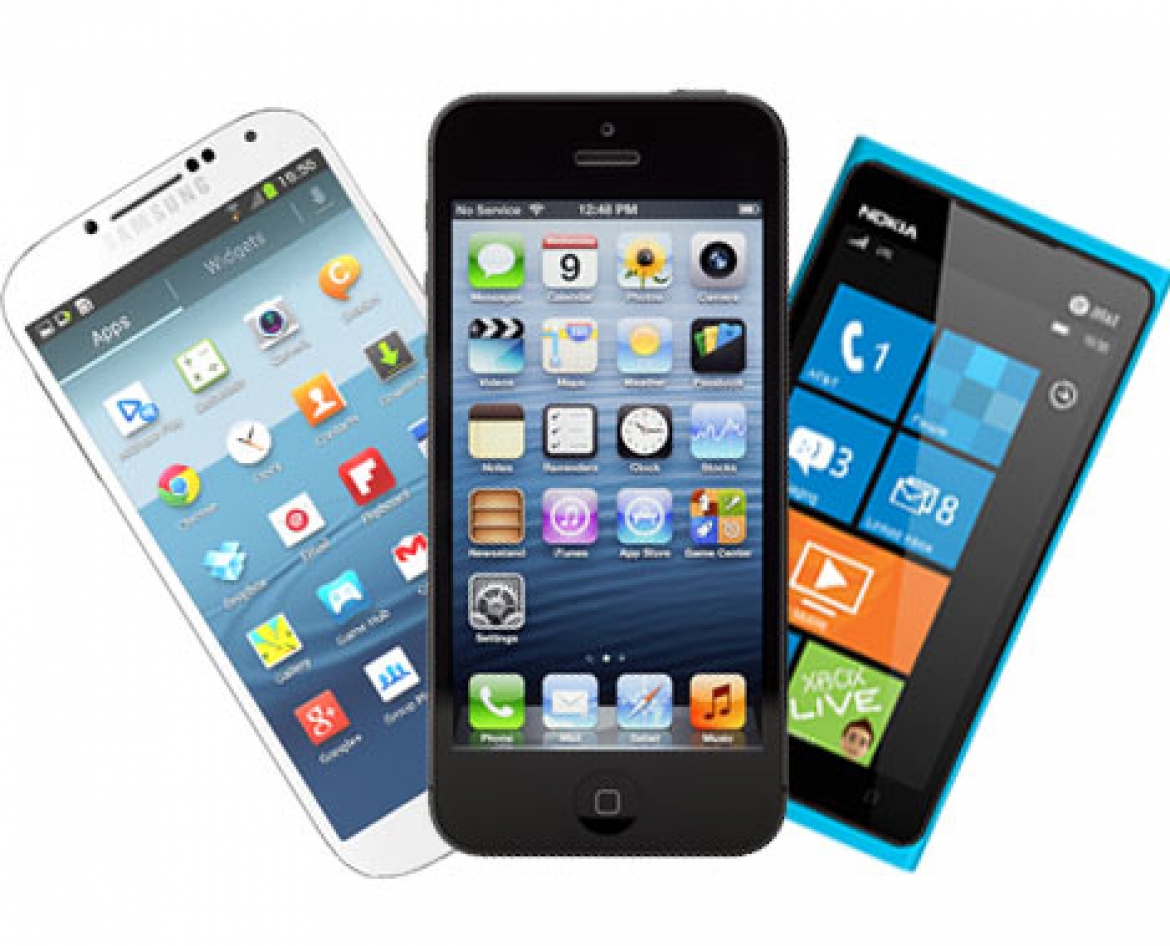
What is the best way to back up your photos for free?
Free space is getting harder to find. In the past, Google offered unlimited space, but they stopped that a few years ago. Now, you have to be smart about how you use your free gigabytes. One trick is to go through your library and delete the junk. We all have ten blurry shots of the same sunset or screenshots of grocery lists we do not need anymore.
Another way to save space is to change the upload quality. In Google Photos settings, look for Backup quality. You can choose Original quality or Storage saver. Storage saver makes the files a tiny bit smaller. You won't notice the difference when looking at them on a screen, but it lets you fit thousands more pictures into your free 15GB limit.
Amazon Prime members get a great deal that many people forget about. If you pay for Prime, you get unlimited photo storage for free. You just have to download the Amazon Photos app. This is a huge win because it does not count against any limits. I use this as my main backup because I already pay for the shipping service anyway.
Microsoft users might like OneDrive. If you use Word or Excel for work, you might already have a paid plan with 1TB of space. Open the OneDrive app on your phone and go to Settings. Tap on Camera Upload. This will send every photo you take straight to your computer's cloud folder. It makes it very easy to see your phone pictures on your laptop without any cables.
Keep a physical copy at home
Cloud storage is great, but it is not perfect. Sometimes companies change their prices or you might lose access to your email account. This is why a physical Backup on a hard drive is a smart move. Having your files in two different places is the only way to be 100 percent sure they are safe.
You can buy a portable hard drive for about fifty dollars. Plug it into your computer once a month. If you use a Mac, use the Photos app to export your library to the drive. If you use Windows, just drag and drop the folders from your phone or your cloud download folder. It takes about twenty minutes, but the peace of mind is worth it.
Some people like to use a USB stick that plugs directly into their phone. These are called dual-drive or OTG drives. One end fits your phone and the other fits your computer. You plug it in, use a file manager app to copy your DCIM folder, and then put the stick in a safe drawer. This is perfect if you go on a long trip where you do not have good internet to upload to the cloud.
I usually do this physical copy every New Year's Day. It is a good habit to start the year knowing last year's memories are locked away. You can find more tech tips for your phone to help you manage these files easily. Making it a routine means you never have to worry about a "Storage Full" message during a big event.
Check your settings to avoid data charges
Backing up photos can use a lot of internet data. If you are not careful, you might get a big bill from your phone company. Most apps have a setting that says "Use mobile data to back up photos." You should usually keep this turned off. This way, your phone only uploads when you are on your home Wi-Fi.
On an iPhone, go to Settings, then Cellular. Scroll down to find the Photos app and turn the switch off. This forces the phone to wait until you get home. On Android, go into the Google Photos backup settings and look for Mobile data usage. Set the daily limit to "No data" or a small amount like 10MB if you only want to sync the most important things on the go.
Also, check if your phone is backing up videos. Videos are much bigger than photos. One minute of high-quality video can be the same size as 200 photos. If you are running out of space quickly, tell your app to only back up photos and skip the videos. You can always upload the videos manually later when you are sure you have the room.
I once went on a cruise and forgot to turn off my data backup. My phone tried to upload 100 photos using the ship's expensive satellite internet. It cost me a lot of money for pictures I could have just waited to sync at home. Always double-check these settings before you leave for a trip.
How to share your backed up photos safely
Once your photos are in the cloud, sharing them is much easier. You do not have to text twenty different pictures to your mom. Instead, you can create a shared album. In Google Photos or iCloud, select the pictures you want and tap the Share icon. Choose New Shared Album and type in your friend's email or phone number.
This is safer than posting everything on social media. Only the people you invite can see the photos. You can even let them add their own photos to the same album. This is great for weddings or family reunions. Everyone puts their pictures in one spot, and everyone gets to keep the memories without any extra work.
Be careful about who has access to your main account. Your photo backup is private. Use a strong password and turn on two-factor authentication. This sends a code to your phone when someone tries to log in. It is a basic part of Computer security that keeps strangers out of your personal life. You do not want anyone else looking through your private family moments.
If you ever stop using a specific app, make sure you download your photos first. Google has a tool called Google Takeout that lets you download everything at once. It sends you a big zip file with all your pictures inside. I do this once a year just to have a giant "master file" of my life on my computer.
Organize as you go to find things faster
A backup is only useful if you can find what you are looking for. Most modern apps use smart search. You can type "dog" or "beach" or "birthday" into the search bar. The app uses artificial intelligence to look at your pictures and find those things. It is pretty amazing how well it works these days.
You can also search by person. Both Apple and Google can group faces together. You can tag a face with a name like "Grandma." Then, whenever you want to see a picture of her, you just tap her face in the search tab. It saves you from scrolling through thousands of images to find that one photo from five years ago.
I like to make albums for big events right away. If I go to a baseball game, I make an album called "Baseball 2024" that same night. It only takes a minute while the memories are fresh. If you wait months to do it, it feels like a big chore that you will never finish. Keeping it tidy makes looking back at your photos much more fun.
Do you have a plan for your photos if your phone breaks today? Take five minutes right now to check your settings and make sure that backup switch is turned on. It is the best gift you can give your future self. Which app do you think you will try first for your photo backup?
Comments
Post a Comment